Creating one Google Ads campaign is easy.
Creating multiple Google Ads campaigns for different advertising channels is hard and time-consuming.
But what if you could create one single campaign with all your assets and get your ads to show up in different placements like YouTube, Display, Search, Discovery, Gmail, and other Google apps automatically?
That’s what Google’s Performance Max can do.
It removes all the manual work of setting up targeting and bidding, and ad copy is done in one shot, saving you a lot of time in return.
Curious to find out how Performance Max works? That’s exactly what we’ll talk about in this post.
What is Performance Max?
Performance Max is a new campaign type in Google Ads designed to help you find more converting customers across all Google’s advertising channels and inside its ecosystem.
Source: Google
This goal-based campaign type enables advertisers like you and me to save time on campaign creation and optimization by doing one simple but powerful thing: Automation.
Before Performance Max was launched, the only way to reach customers was to manually create a campaign in each channel.
Want to reach more customers on YouTube? Create a video campaign.
Want customers to see your business when they search? Create a search campaign.
Tedious and time-consuming? I know.
Well, that’s all in the past now, because with Performance Max you only need to provide assets of your ad creatives (images, videos, copy, etc.) and it will roll all of those into one single campaign.
It’s the fastest way to show your ads across Search, Maps, Display, Gmail, Discovery Feed
YouTube, and Shopping Ads inventories.
How to Use Google’s New Performance Max Campaign
Setting up your Performance Max is almost the same as creating any other campaigns inside of Google Ads. If you’ve created campaigns before, this should be easy and familiar to you.
Let’s dive in!
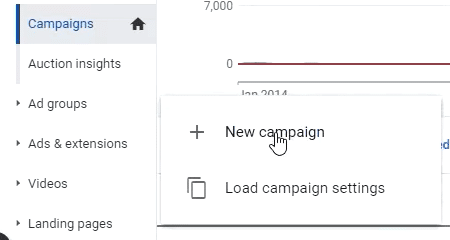
☐ Inside your Google Ads Campaigns dashboard, click “+ New campaign”
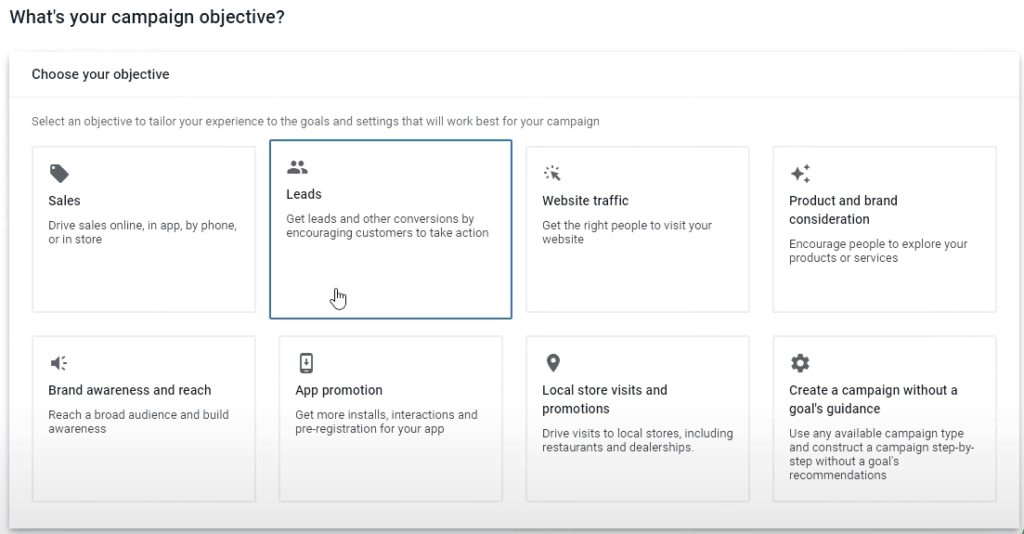
☐ Choose your objective. In this tutorial, we’ll use Leads as an example
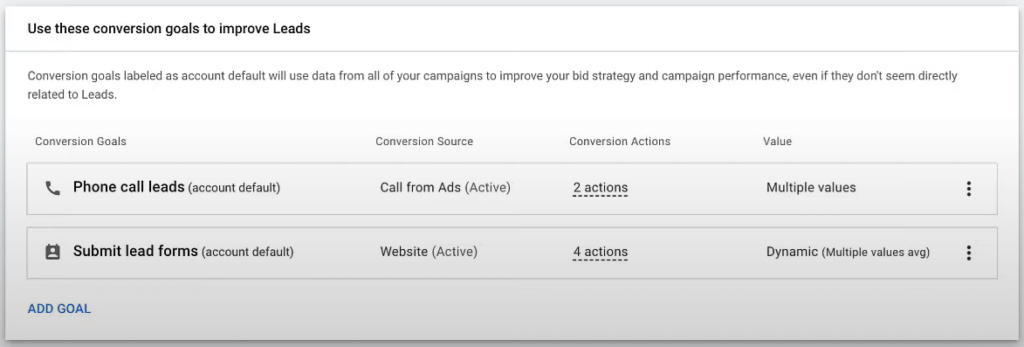
☐ Choose the conversion actions for your campaign.
Remember, this is a goal-based campaign. By adding specific conversion goals you’ll be able to drive performance towards the conversion goals you want your campaign to accomplish.
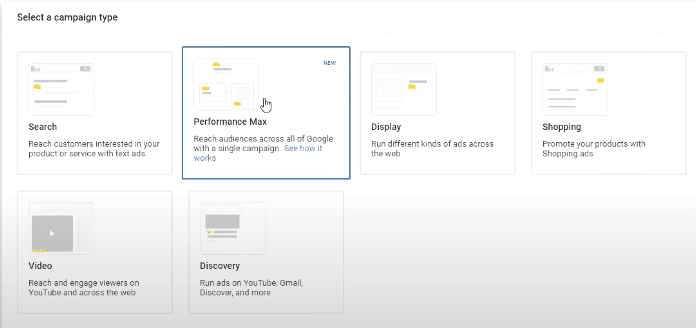
☐ Select a campaign type. Choose Performance Max
☐ Set a bidding strategy you want to focus on
Pro Tip: Don’t set a target cost per action and a target return on ad spend, at least not in the beginning. Give it at least 30-60 days to gather enough data and find out how Google operates before putting constraints on it.
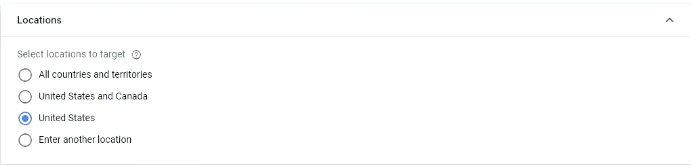
☐ Choose the locations you want to target
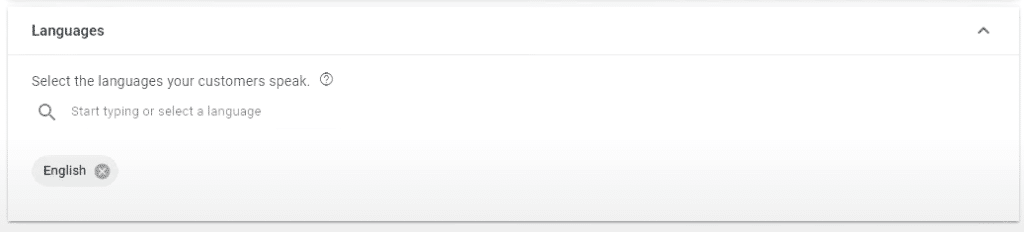
In other campaigns (like search), we take the language off because users search by a specific search term.
However, in this scenario, the language applies to Google’s entire ecosystem. Use whatever language settings are applicable to you.
Building Your Asset Group (Ad Group)
If you’ve already created campaigns before, you’re probably familiar with what an ad group is. An asset group functions the same way.
You can create multiple asset groups for each campaign.
All you need to do is create as many assets as you need, and Google will dynamically create your ad depending on what network you want it to go to.
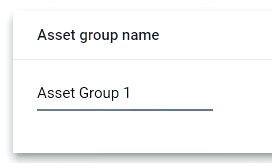
☐ Name your asset group
You can either upload images or get Google to scan your website. If you choose to scan your website, Google will pull up images from your site and social media.
☐ Add logos
You can either upload or scan your site for logos. If you choose to scan your site, Google will get your favicon and use it as your logo.
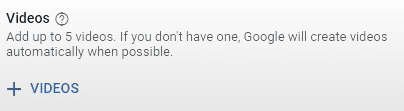
☐ Add videos
You can either upload videos from your computer or from YouTube. Just add the URL and Google will pull up those videos.
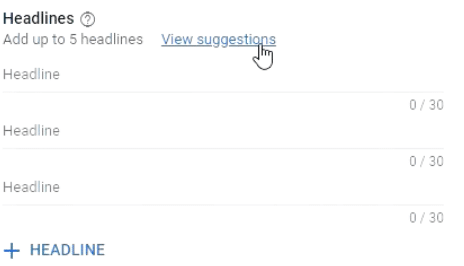
☐ Add headlines
The way “suggestions” work is Google will create headlines based on your site.
Whether you’re using suggestions or not, make sure that your headlines are really good and can capture your users’ interest.
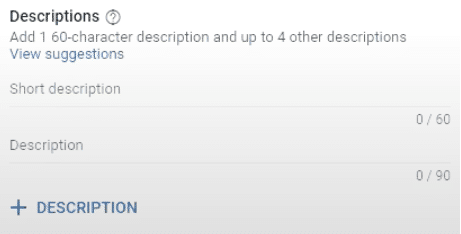
☐ Add long headlines
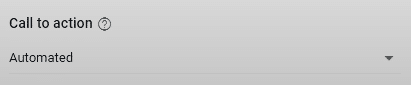
We highly recommend choosing automated as your call to action. Because we’re in a machine-learning world, it would be best to stick with Google’s choices at least for this section.
☐ Add your business name
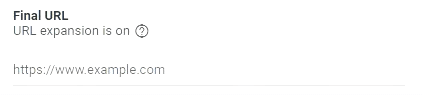
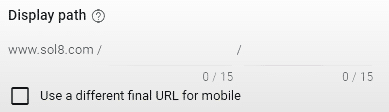
Pro Tip: Always use a display path. This helps you to manipulate the Final URL to reinforce your offer.
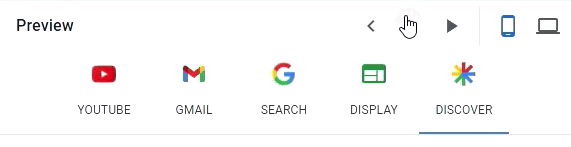
Before you continue, take a look at what your ads might look like in the preview mode and see if there’s anything you need to change.
Once you’re done, it’s time to create an audience signal.
Building Your Audience Signal
Now that you’ve finished selecting your goals, adjusting your settings, and creating your assets, you’re probably wondering how to determine the right audience to target with this campaign.
This section talks about that.
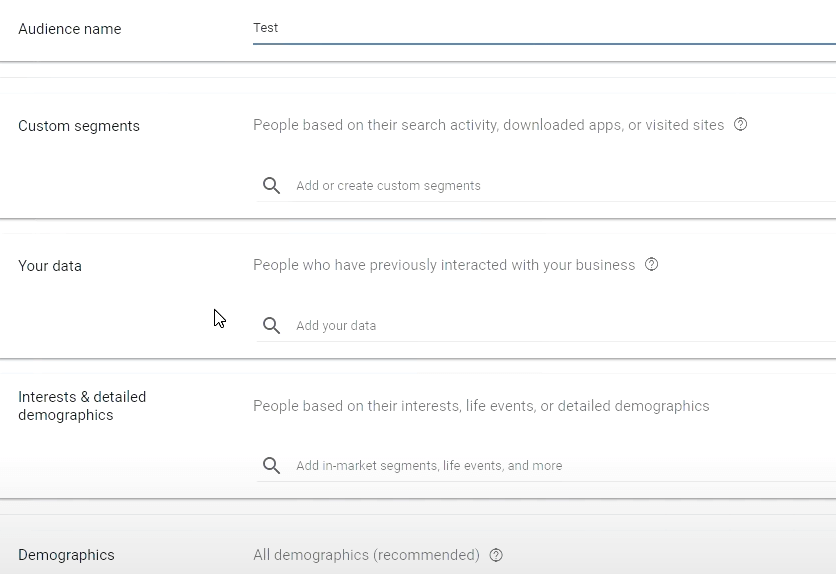
In your audience signal, you’ll have the ability to tell Google who you want to target with your ads.
By creating an audience signal, you’re giving Google the type of audience profile you want to target. Google will use this profile to find similar profiles to serve your ads to.
Your audience signal can include your data (remarketing and customer match lists) or if you have any custom segment you’ve created.
Custom segments. This allows you to search users’ search activity, downloaded apps, or websites they visited that you don’t own. If you already built your own custom segment before, you can add that segment here. If not, you can add a new custom segment and build it from scratch.
Your data. If custom segments are those who interacted with someone else’s website, your data is the list of people who have interacted with your site. It’s basically your remarketing and customer match list.
Interests & detailed demographics. This allows you to choose your audience based on demographics (e.g. parental status, marital status, education, employment, etc.) or the industry they’re interested in––business services, consumer electronics, apparel, etc.
Demographics. This is a deeper dive into the details of your demographics. It allows you to choose the gender, age, parental status, and household income of your target audience.
Adding Your Extensions
Just like adding extensions when creating search, you can add extensions in Performance Max to show pieces of information about your business that you can tack onto your ad, including your address, phone number, direct page links, coupons, or even additional websites.
And you’re done!
If you are new to Google Ads and want to know how to set up, build and optimize Google Ads from scratch, don’t forget to check out our robust step-by-step guides for eCommerce and lead generation.
However, if you’ve dabbled with Google Ads before but just can’t get the results you want for your business, it’s probably time for you to let our team of Google Ads handle it. Just claim your free action plan here to get started!
 Patience Hurlburt-Lawton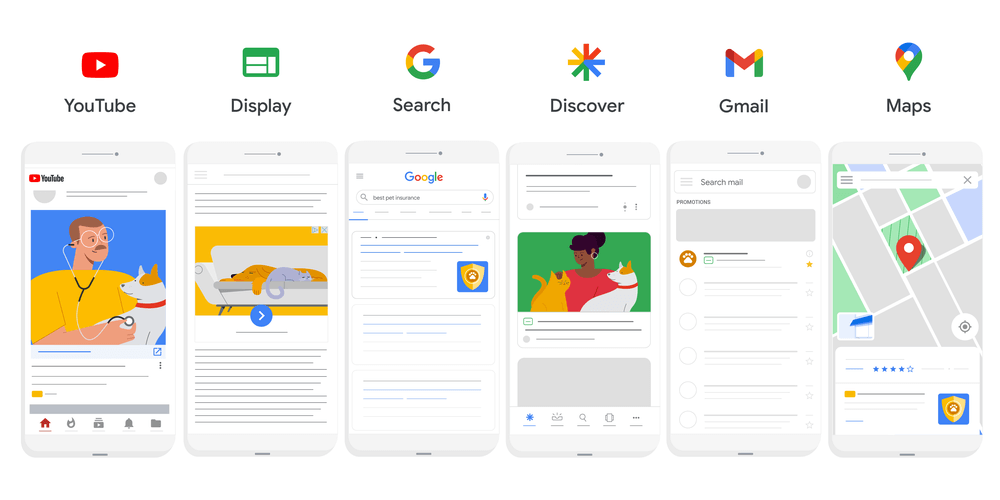







 “Glad to have met the team at Solutions 8. Their creative minds have really given our business the competitive edge we needed through digital marketing. I highly recommend Solutions 8 for their creativity and personal attention, I can’t say enough about how EXCELLENT Soultions 8 is!”